Webshop User Manual
This guide explains how to access and use the Alpha Pharm Group Webshop to find products, place orders and use your account services.
Accessing the Webshop
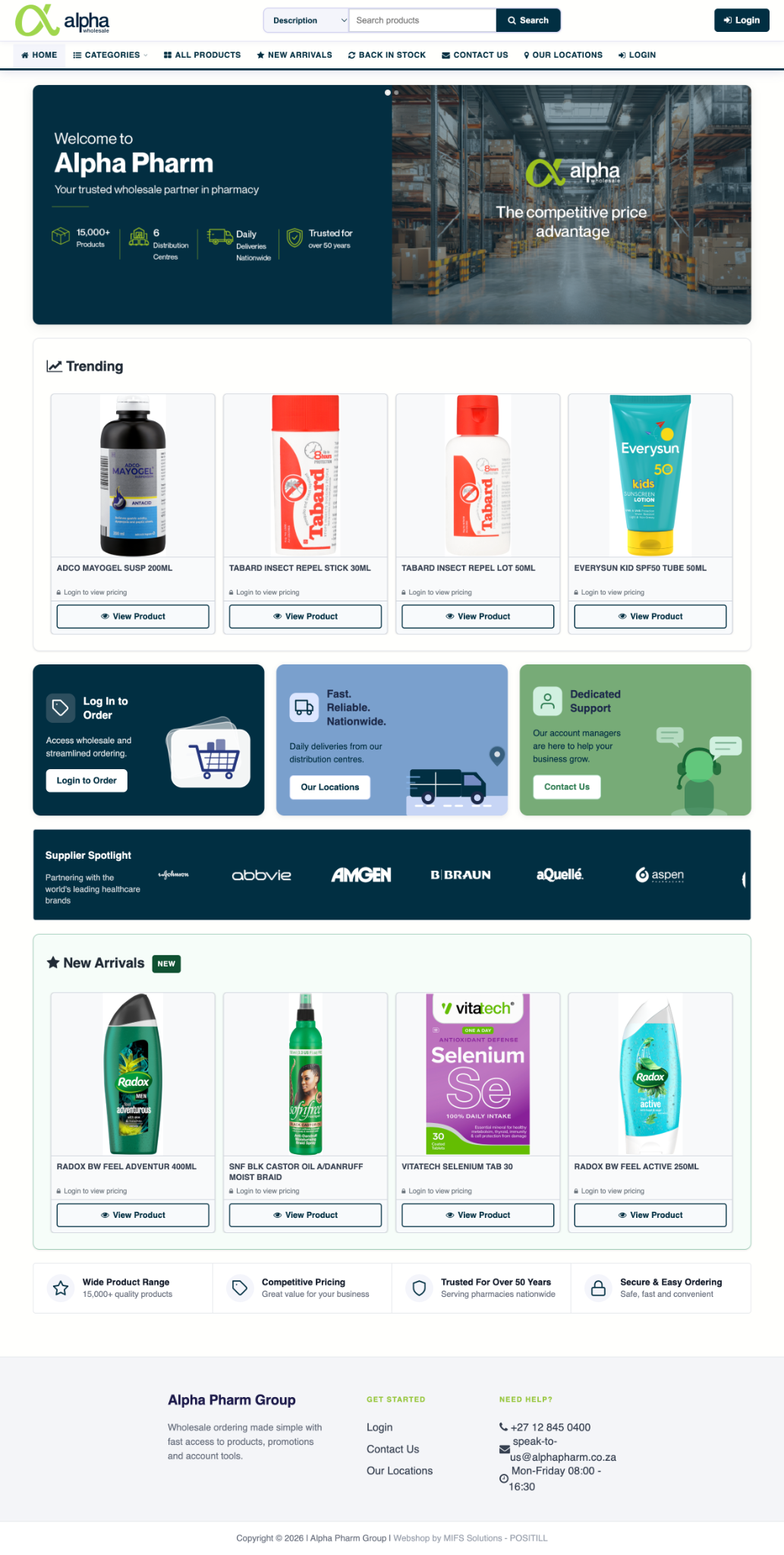
Start at the Alpha Pharm Group Webshop public homepage.
Before you log in
The public webshop can be used to browse products and New Arrivals, view Contact Us and Our Locations information, and access the Login page.
- Open https://alphapharm-webshop.co.za/.
- Use the public menu if you want to browse products or general webshop information.
- Login to the relevant branch when you are ready to view pricing, place orders and access account functions.
Customer pricing and account-specific functions are available after login.
Logging In
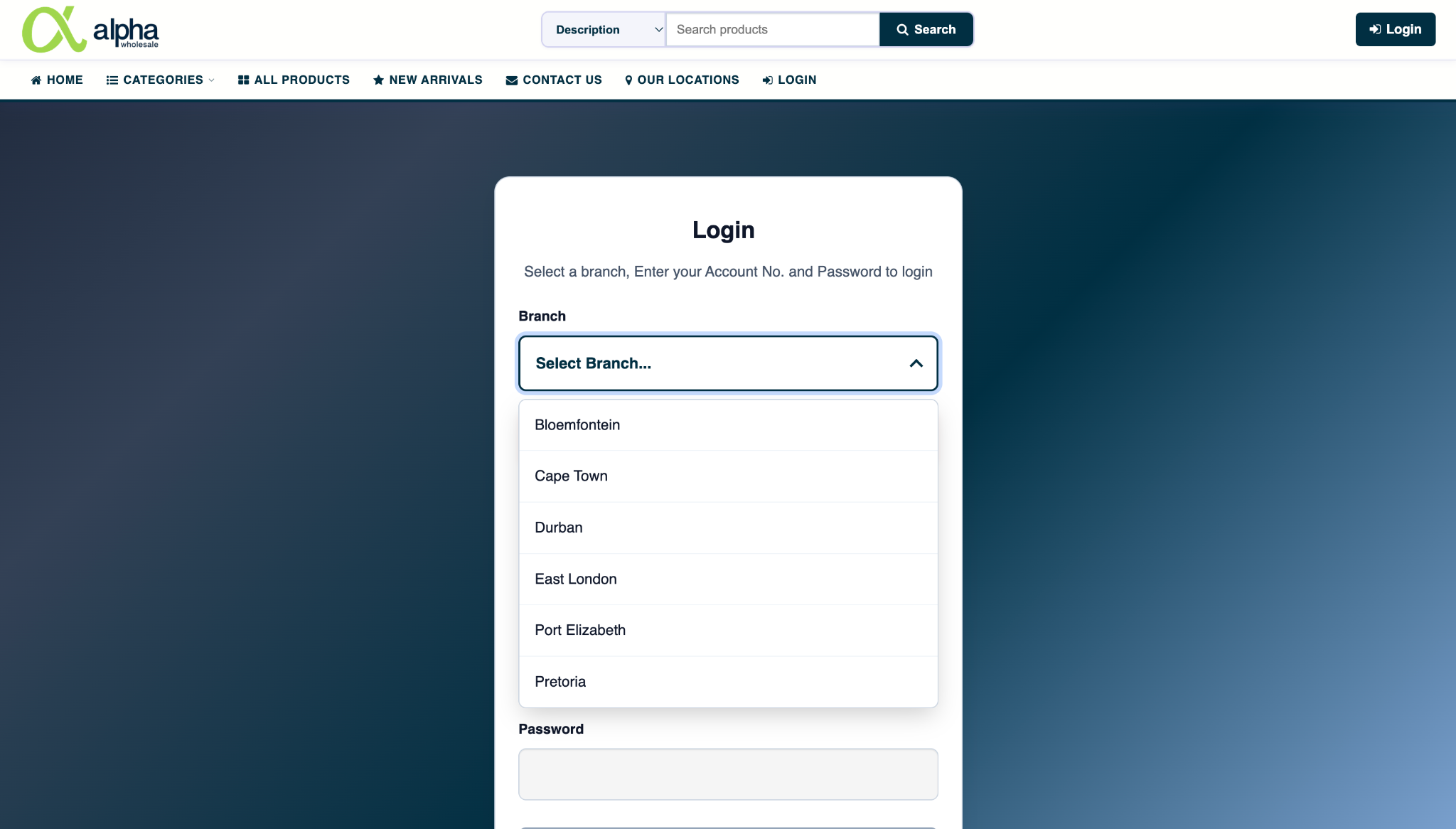
Select the branch linked to your account, then enter your Alpha Pharm account details to access pricing, ordering and account functions.
Login steps
- Select Login from the public webshop.
- Choose the branch linked to your account: Bloemfontein, Cape Town, Durban, East London, Port Elizabeth or Pretoria.
- Enter your Account No. and Password.
- Select Login.
If this is your first time logging into the webshop, enter your Account No. as both your Account No. and Password. An email will then be sent to you with further instructions.
Other login options
Home
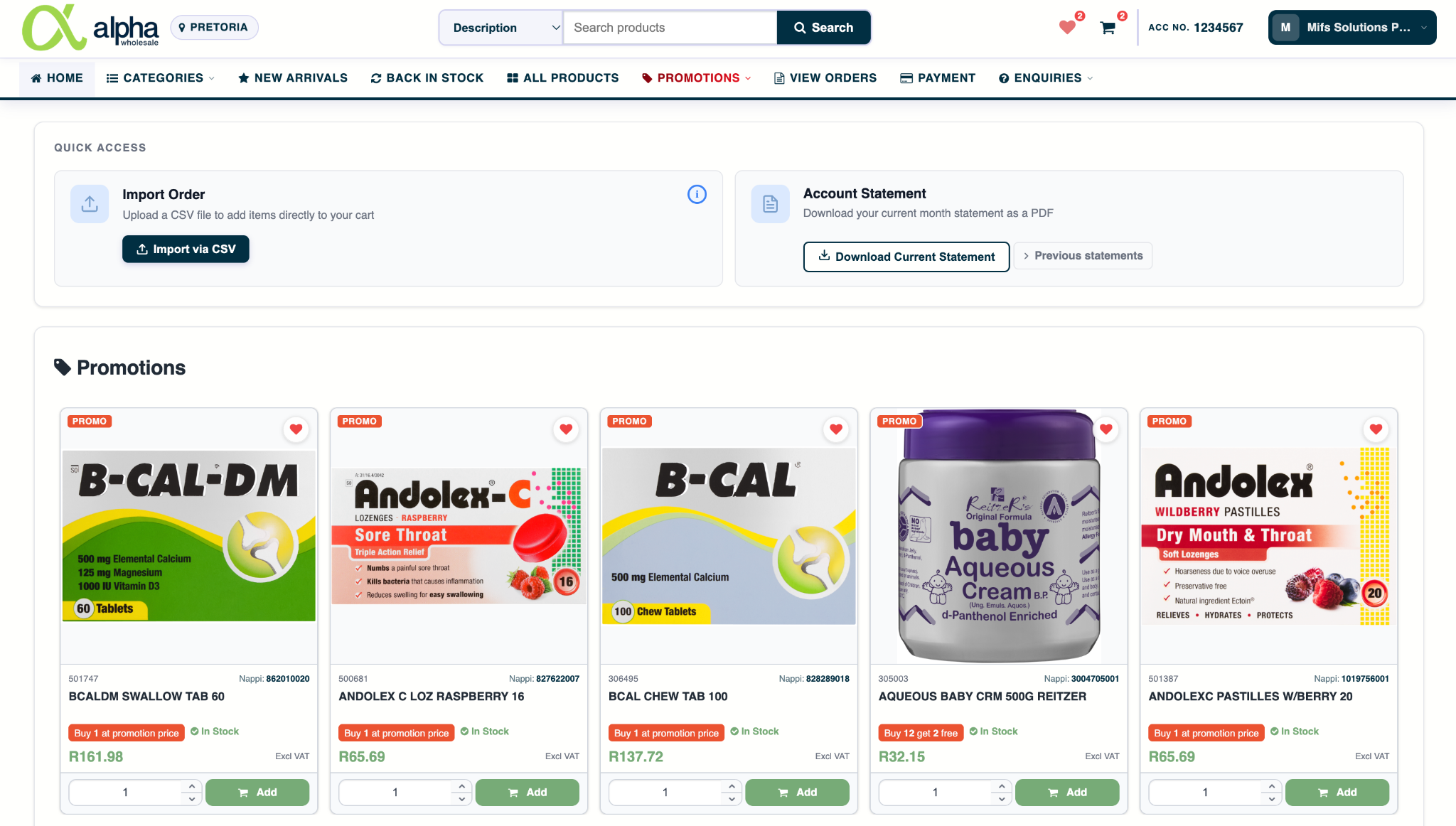
After login, the Home page gives you quick access to the main shopping and account functions.
At a glance
From the header you can confirm your selected branch, search for products, open favourites or your cart, and access your account menu.
The main navigation provides access to Home, Categories, New Arrivals, Back in Stock, All Products, Promotions, View Orders, Payment and Enquiries.
Quick Access
The Home page also includes shortcuts to:
- Import Order — upload a CSV file to add multiple products directly to your cart.
- Account Statement — download the current statement or open previous statements.
Account Functions
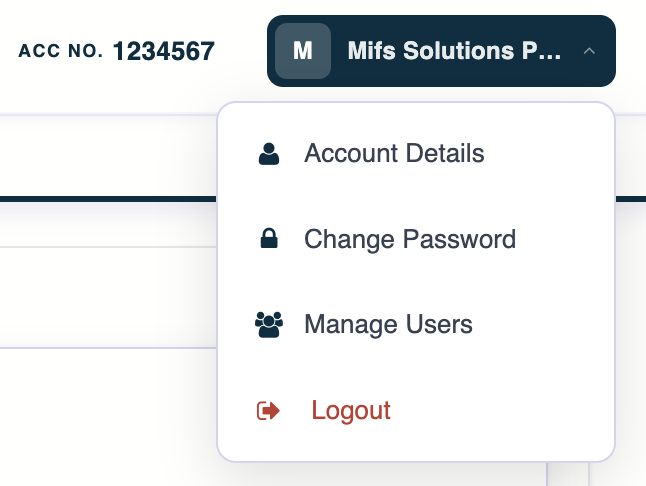
Select your account name at the top-right of the webshop to open the account menu.
Account menu
The account menu provides quick access to:
- Account Details — view your profile, credit information and recent sales overview.
- Change Password — enter and confirm a new password, then select Save Password.
- Manage Users — create and manage sub-users linked to the account.
- Logout — securely end your webshop session.
Account Details
The Account Details page shows your account profile, credit limit, available credit and a recent sales summary.

Manage Users
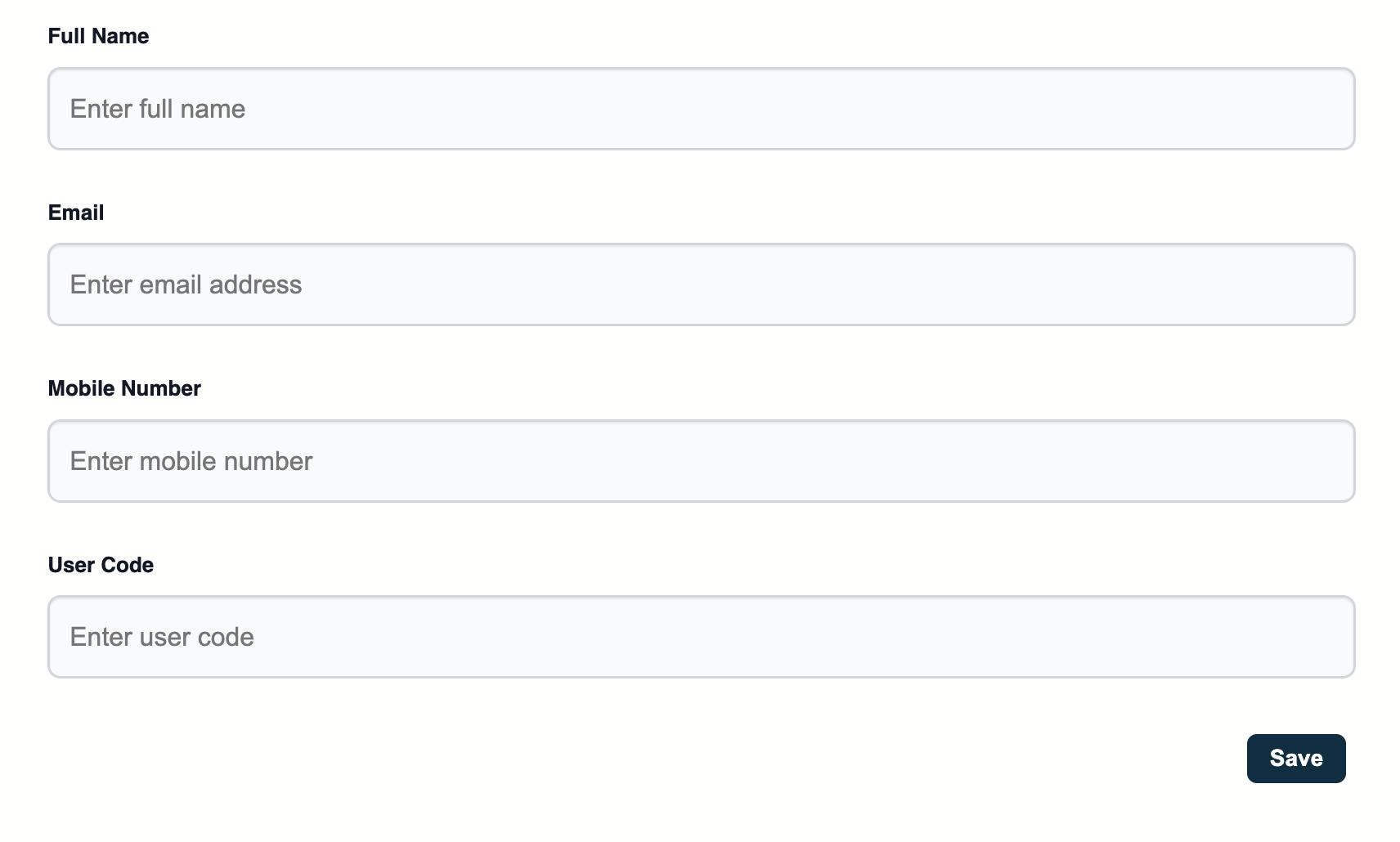
Use Manage Users to view sub-users linked to your account. Select Add User Code to create a new sub-user by entering the person’s full name, email address, mobile number and user code.

Searching for Products
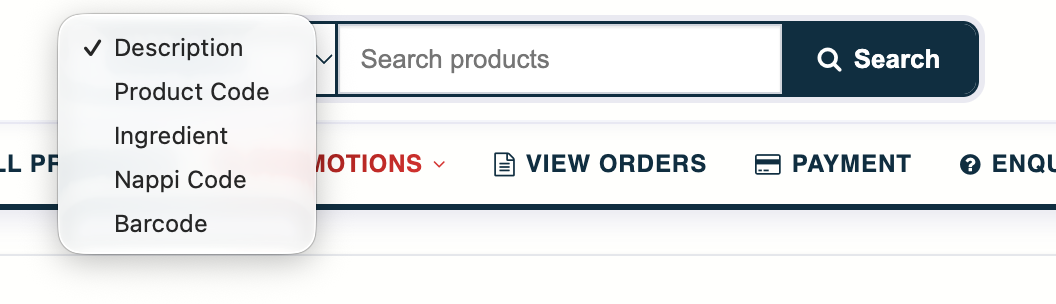
Use the search bar at the top of the webshop to find products quickly.
Choose the search type, enter your search term and select Search. You can search by Description, Product Code, Ingredient, NAPPI Code or Barcode.
Shopping by Category
Use Categories from the main navigation to browse and shop products by category.
Where available, you can continue into subcategories and sub-subcategories to narrow the product list further.
New Arrivals & Back in Stock
Use New Arrivals to view products that have recently been added to the webshop.
Use Back in Stock to view and shop products that have recently become available again.
All Products
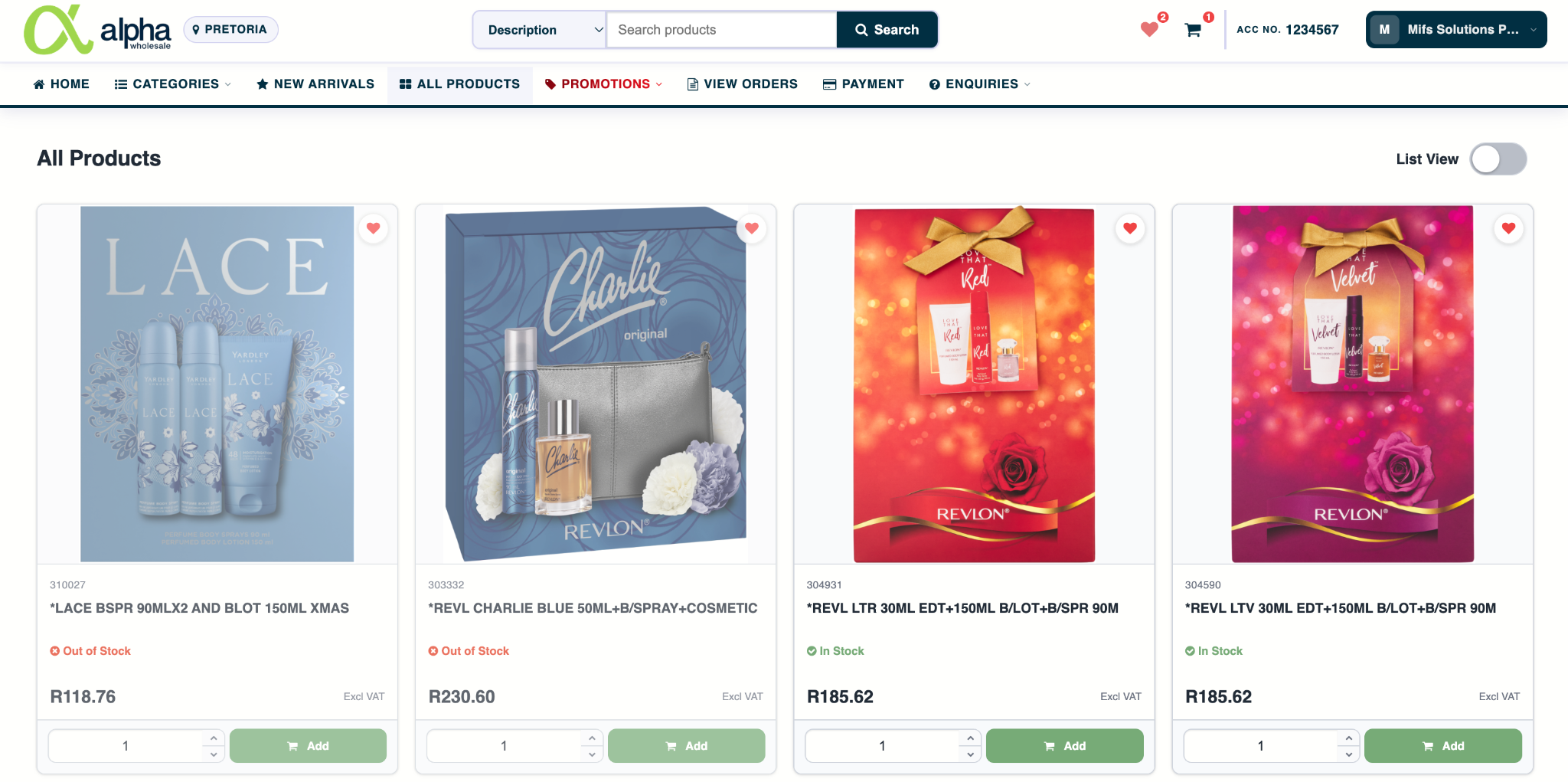
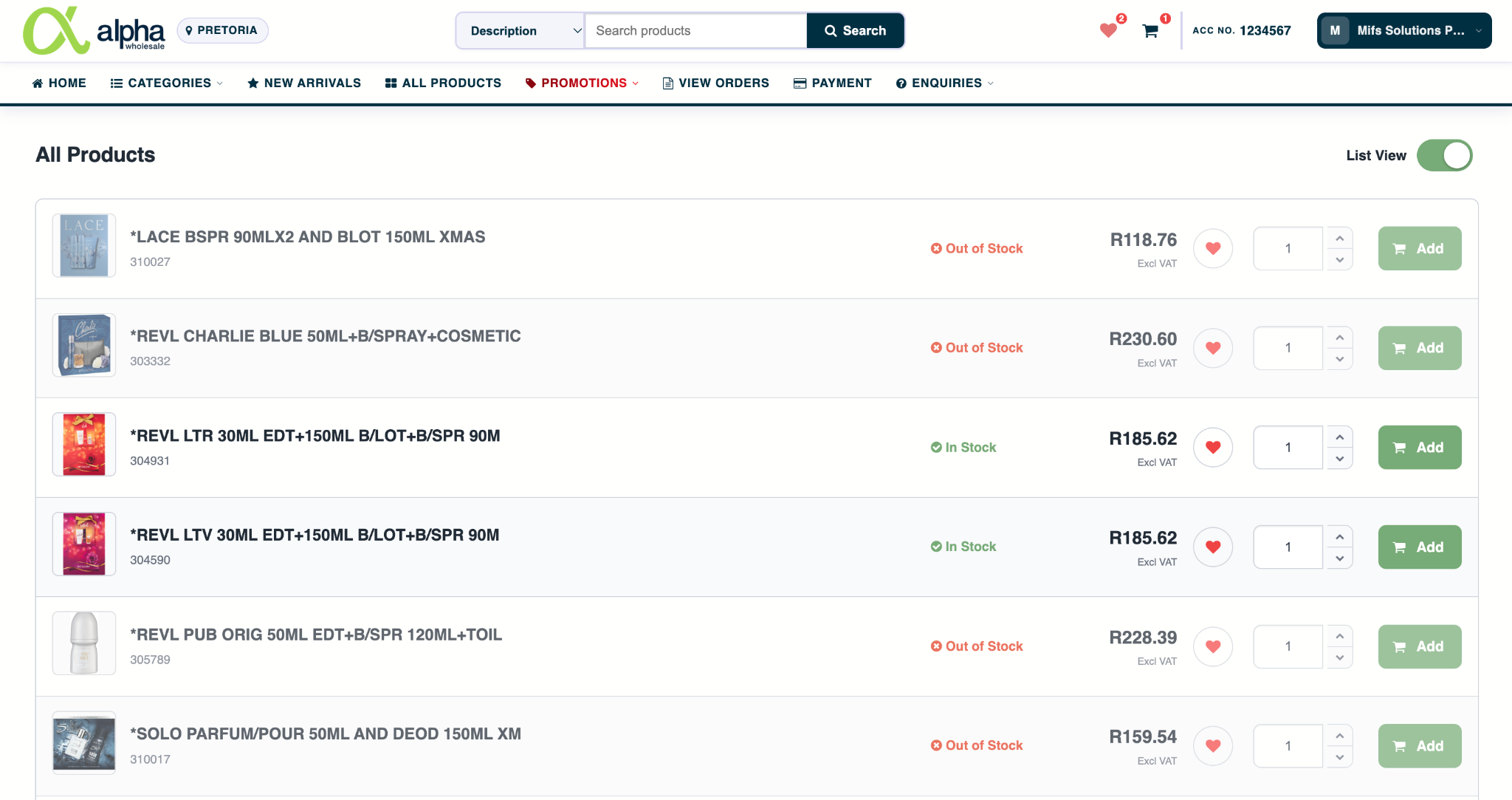
The All Products page displays the full product catalogue available to your account.
Working with the product list
Each product shows the product name and code, stock status, price excluding VAT and quantity controls. You can add products directly to your cart using Add, or use the heart icon to add or remove an item from your favourites.
Grid View and List View
Use the List View switch at the top of the page to change between Grid View and List View. Your selected view is saved and will be used again when you return.
Viewing an individual product
Select a product to open its product page. Here you can view product images, product information, stock availability, price, quantity controls, Add to Cart and the favourite control.

Further down the product page, you can view your Purchase History for the last 12 months. Where available, an Alternate Products section is also displayed so you can browse other suitable products.

Focus Items
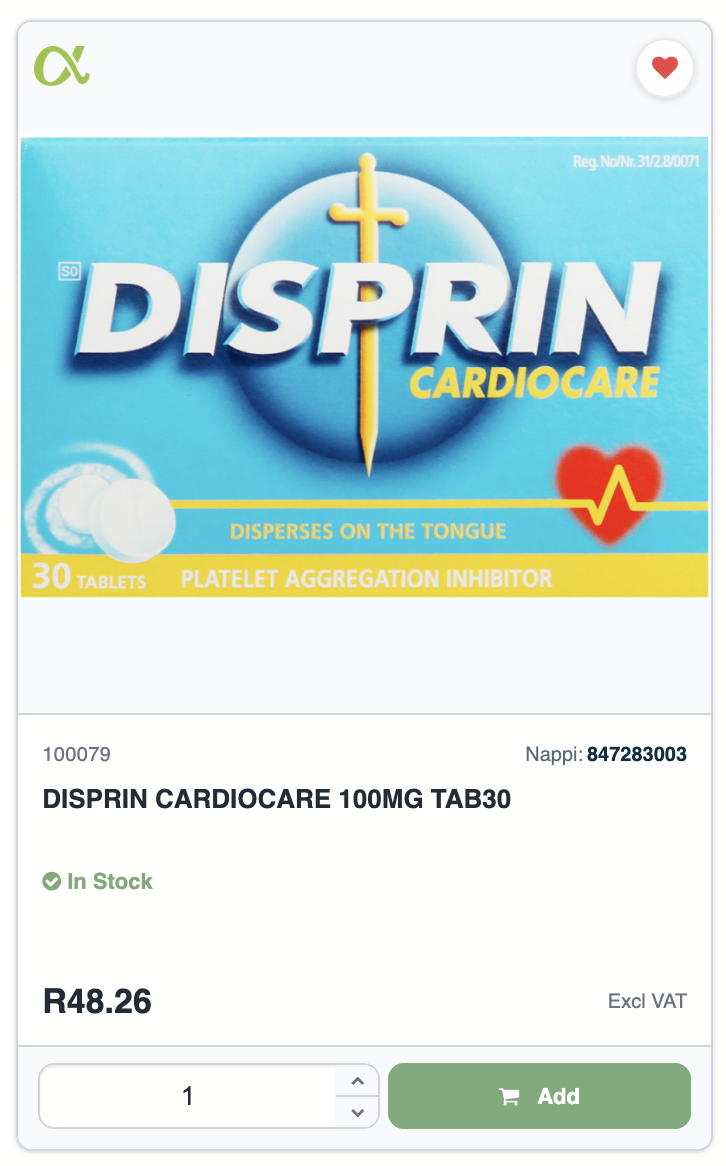
Products displaying the Alpha Pharm icon in the top-left corner of the product card are identified as Focus Items.
Promotions
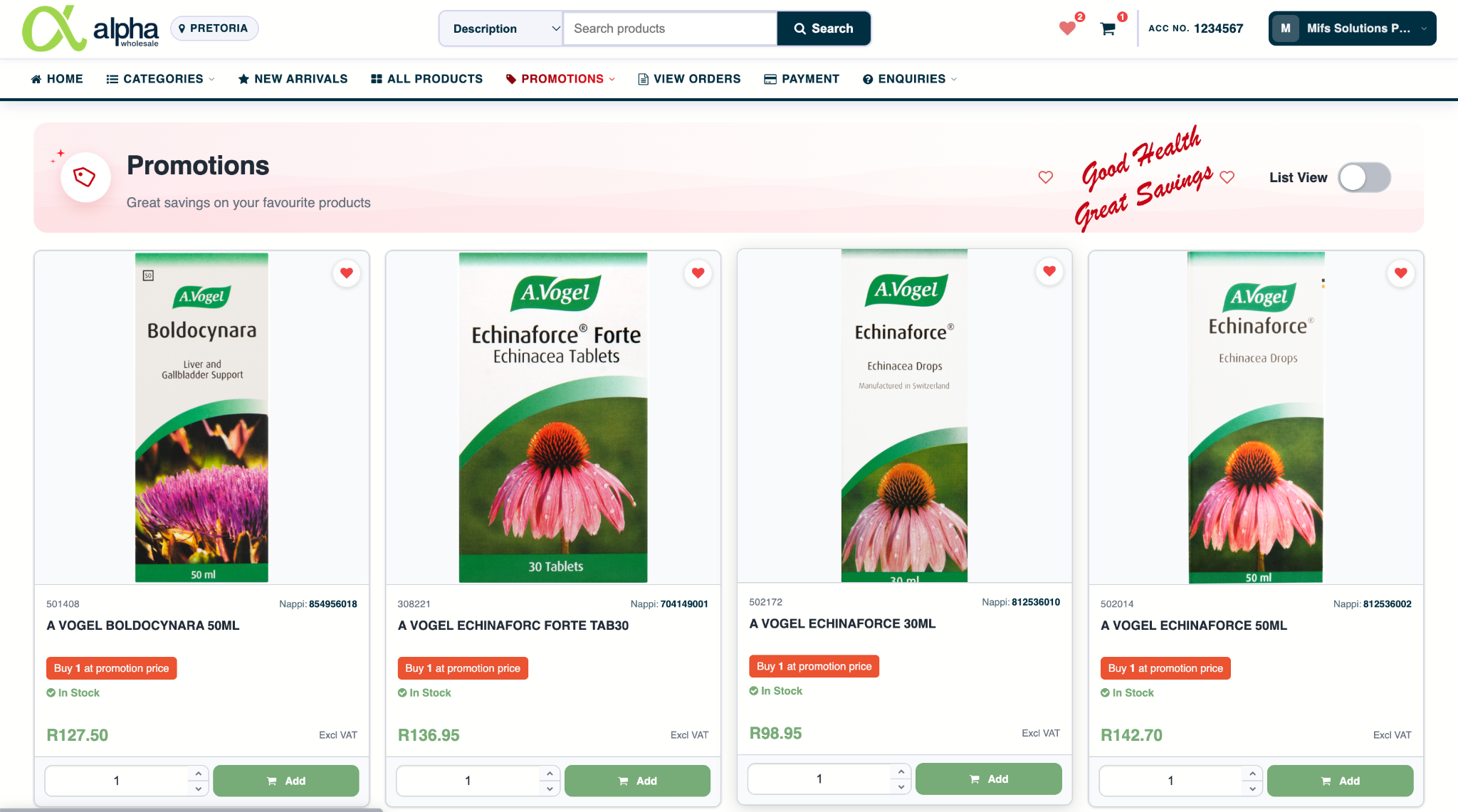
Use Promotions from the main menu to view available specials. Promotion options include All Promotions, Web Only Promotions and Combo Promotions.
All Promotions
The All Promotions page shows products currently on promotion. Promotional products display the offer, stock status, price and quantity controls and can be added directly to your cart.
If you open a promoted product, the product page shows the promotion details, such as the buy quantity, free quantity, promotional price and list price. Where more than one offer is available, use Select to choose the required promotion.

Web Only Promotions
Web-only promotions are offers available specifically through the webshop. If a product displays a WP indicator, the item is included in a Web Promotion.
Combo Promotions
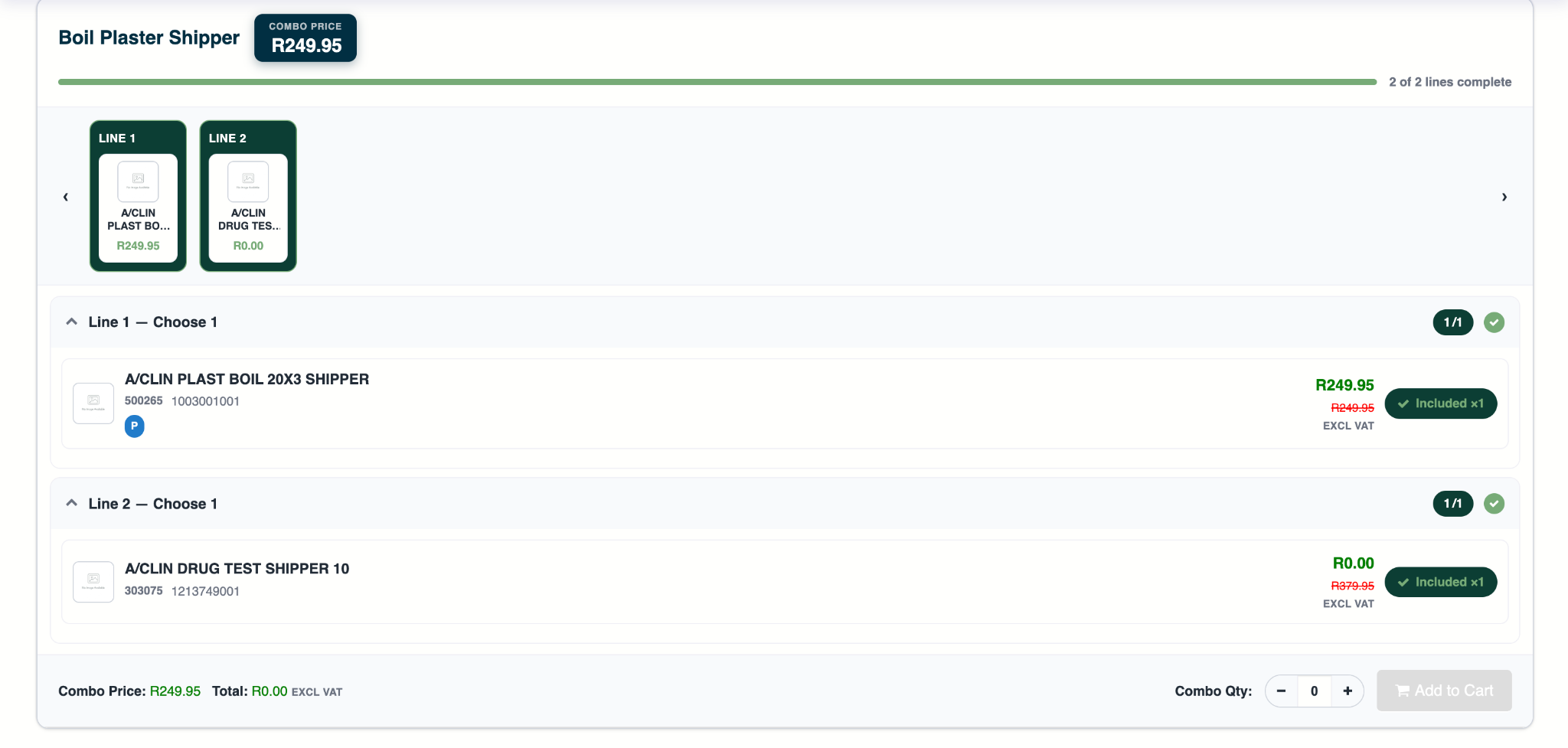
Combo Promotions are bundle offers made up of multiple product lines for one combined promotional price.
- The Combo Price is shown at the top of the deal.
- Each required line shows how many products must be selected.
- Where a line has more than one eligible product, select the item you want for that line.
- The progress indicator shows how many required lines are complete, for example 2 of 2 lines complete.
- Once all required lines are complete, choose the required Combo Qty and select Add to Cart.
Some products in a combo may display R0.00 because their value is already included in the overall Combo Price.
Importing an Order via CSV
The Import Order feature lets you add multiple products to your cart at once by uploading a CSV file. This is useful for larger orders where you already have the product details in a spreadsheet.
How to import an order
- From Home, under Quick Access, select Import via CSV.
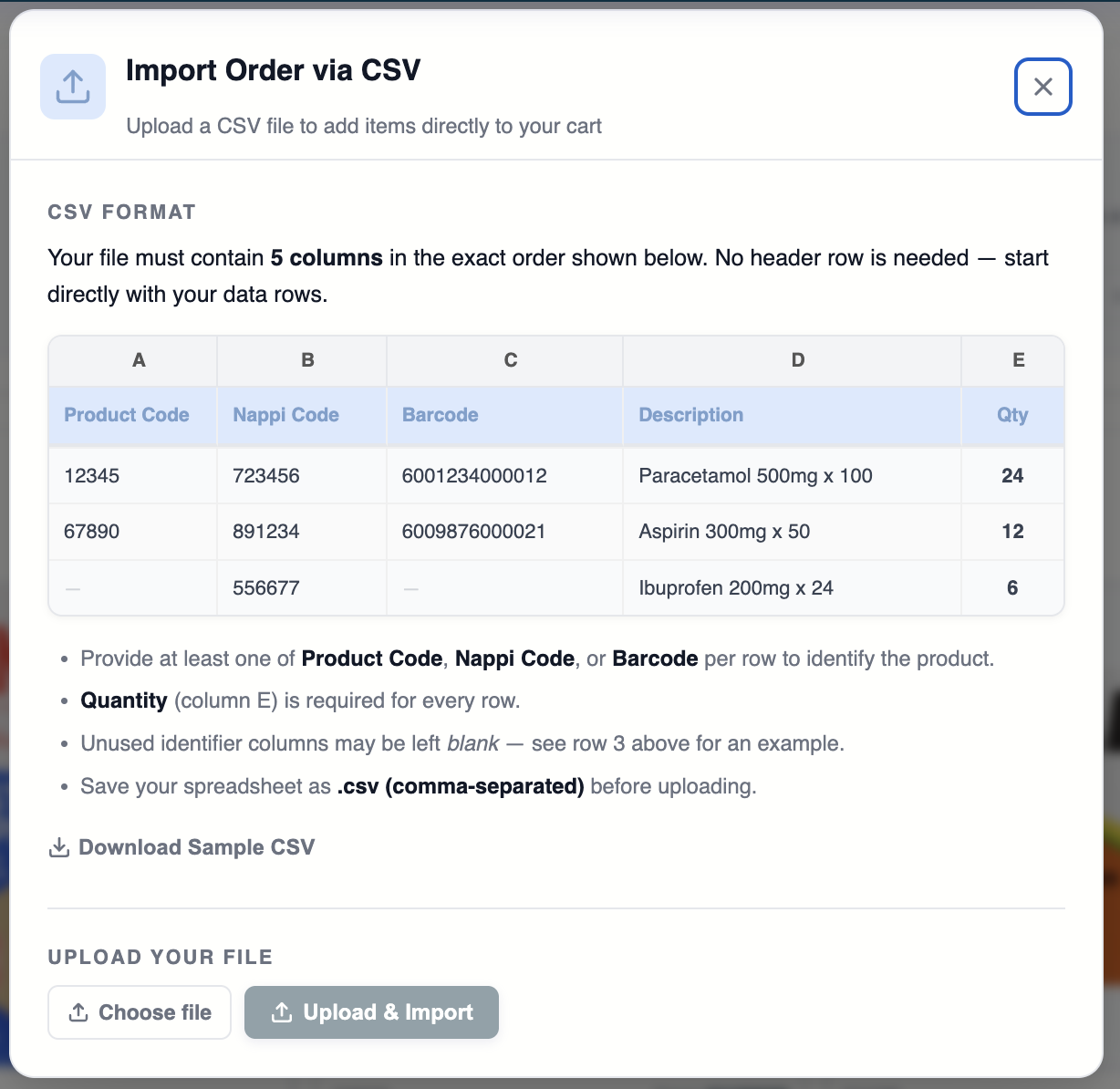
- Prepare your file using the required five-column format shown on the import screen.
- If needed, select Download Sample CSV and use it as a template.
- Select Choose file and browse to your CSV file.
- Select Upload & Import.
- Once imported, review the products and quantities in your cart before continuing to checkout.
Required CSV format
- Provide at least one of Product Code, NAPPI Code or Barcode for each row.
- Quantity is required for every row.
- Unused identifier columns may be left blank.
- Do not include a header row; start directly with your product data.
- Save the file as a .csv (comma-separated) file before uploading.
If you are unsure of the format, download the sample CSV and replace the sample product lines with your own order.
Keep the five columns in the exact order shown. Changing the column order or omitting the quantity may prevent the file from importing correctly.
Shopping Cart
Items can be added to your cart from product lists, promotion pages, combo deals and individual product pages.
Reviewing your cart
In the Shopping Cart you can view the items you have added, update quantities, remove individual products or select Empty Cart to clear the cart completely.
- Order Qty can be edited for each line.
- Free Qty is shown where an item qualifies for a free quantity.
- Unit Price, Sub-Total, VAT and Total are displayed for review.
- Select Continue Shopping to return to shopping, or Checkout when you are ready to continue.

Checkout
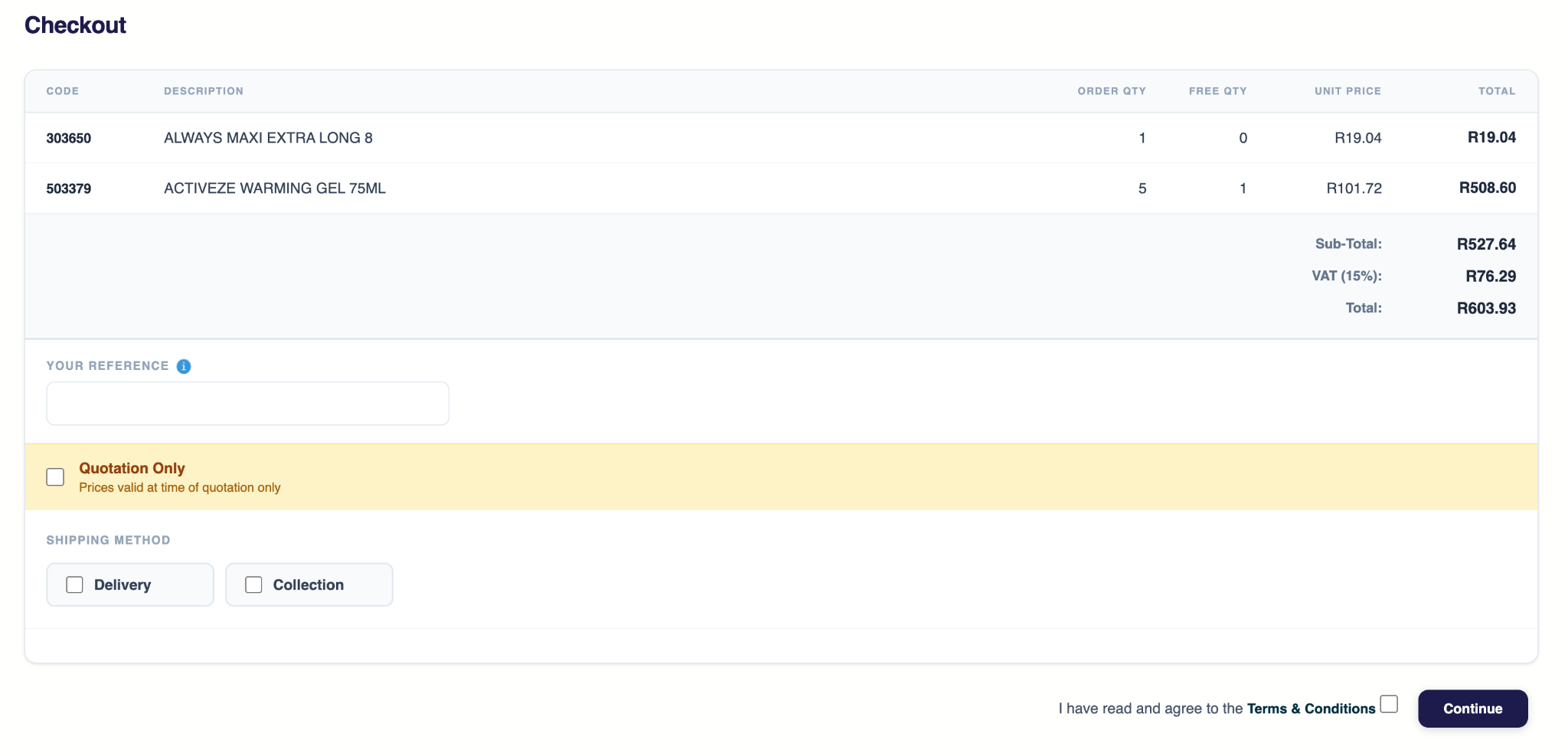
Once you are ready, select Checkout from the Shopping Cart to continue with your order.
Completing checkout
- Your Reference is for the customer’s own internal use and can be used for a purchase order number, reference number, department name or any other internal identifier.
- If you tick Quotation Only, the order will be created as a quote instead of a final order.
- Prices on quotations are valid at the time of quotation only.
- A quotation may be copied back to the cart later, but the prices will update to the current prices at that time.
- Choose the required Shipping Method: Delivery or Collection.
- You must accept the Terms & Conditions before selecting Continue.
View Orders & Tracking
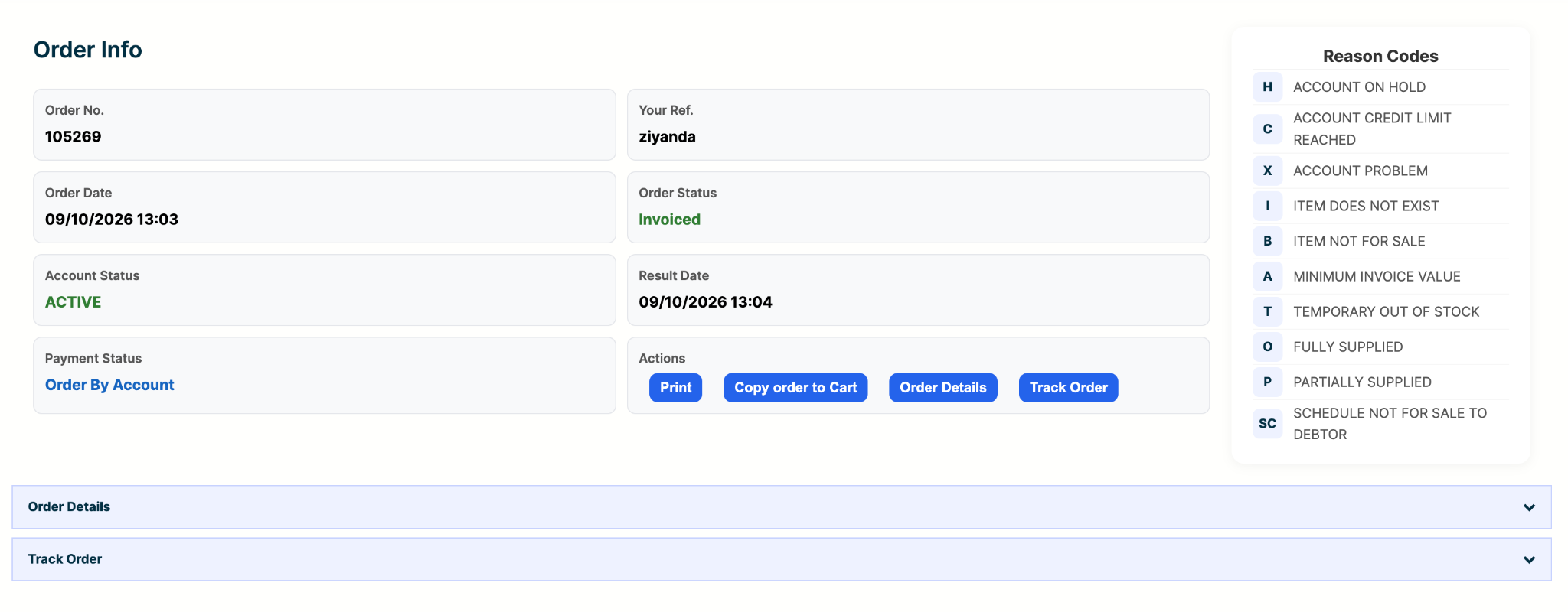
Use View Orders to review previous orders, check order status and open the available order actions.
Order information and actions
The Order Info screen shows the order number, your reference, order date, order status, account status, payment status and the result date.
From here you can:
- Print the order information.
- Copy order to Cart to use the previous order as a starting point for a new order. Current product availability and pricing will apply when the copied items are added to the cart.
- Open Order Details to view the individual order lines, quantities, prices and totals.
- Select Track Order to view the fulfilment and delivery progress for the order.
Reason Codes
Reason codes help explain the result or supply status of an order or order line. The codes shown on the webshop include:
| Code | Meaning |
|---|---|
| H | Account on Hold |
| C | Account Credit Limit Reached |
| X | Account Problem |
| I | Item Does Not Exist |
| B | Item Not for Sale |
| A | Minimum Invoice Value |
| T | Temporary Out of Stock |
| O | Fully Supplied |
| P | Partially Supplied |
| SC | Schedule Not for Sale to Debtor |
Order Details
Expand Order Details to see the individual products on the order, including the product code, description, order quantity, free quantity, invoice quantity, reason code, price and line total.
The order totals shown underneath include any discount, the sub-total, VAT and the final total.

Track Order
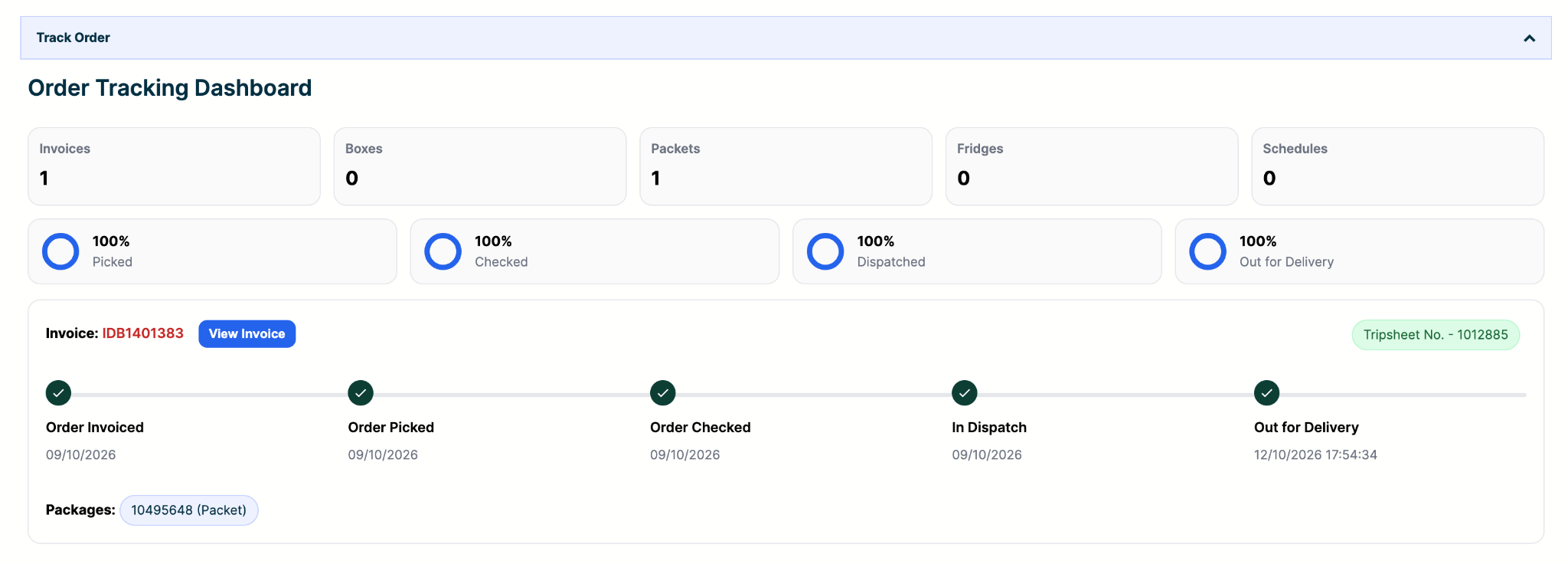
Expand Track Order to follow the order through the fulfilment process. The dashboard shows the number of invoices and the package types linked to the order, together with progress through stages such as Picked, Checked, Dispatched and Out for Delivery.
The timeline shows when each stage was completed and lists the package number linked to the shipment. Where available, a Tripsheet No. is also displayed for the delivery.
You can select View Invoice from the tracking section to open or download the invoice for that shipment.
Payment
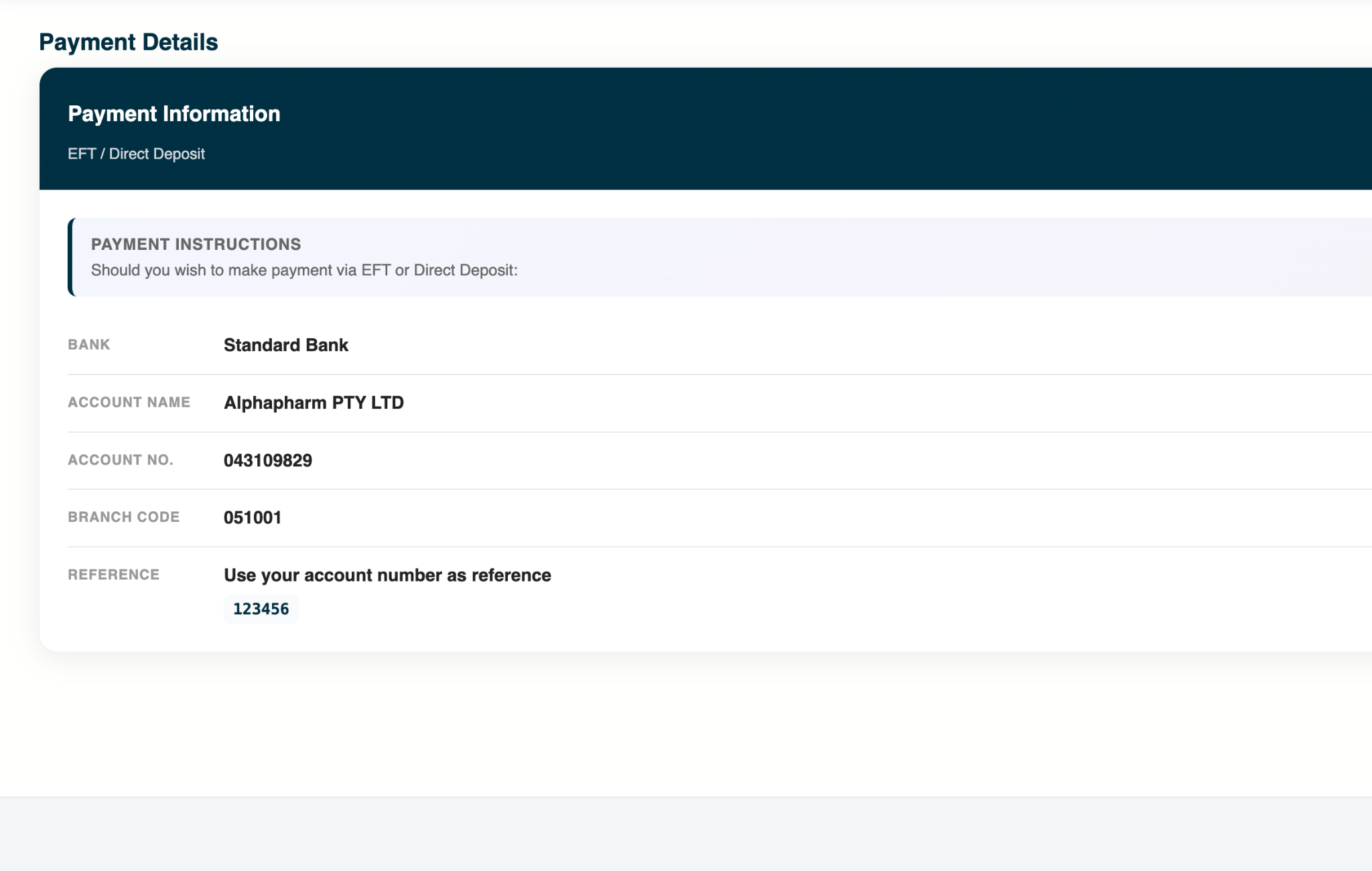
Use Payment from the main navigation to view the payment instructions for your account.
Making a payment
Payment can be made via EFT or direct deposit into the bank account shown on the Payment page.
Always use your Alpha Pharm account number as the payment reference so that the payment can be allocated correctly.
Use the banking details displayed on the live webshop when making payment, as the live information takes precedence over screenshots in this manual.
Sales History & Statements
Use Enquiries to review account activity and request statements.
Sales History
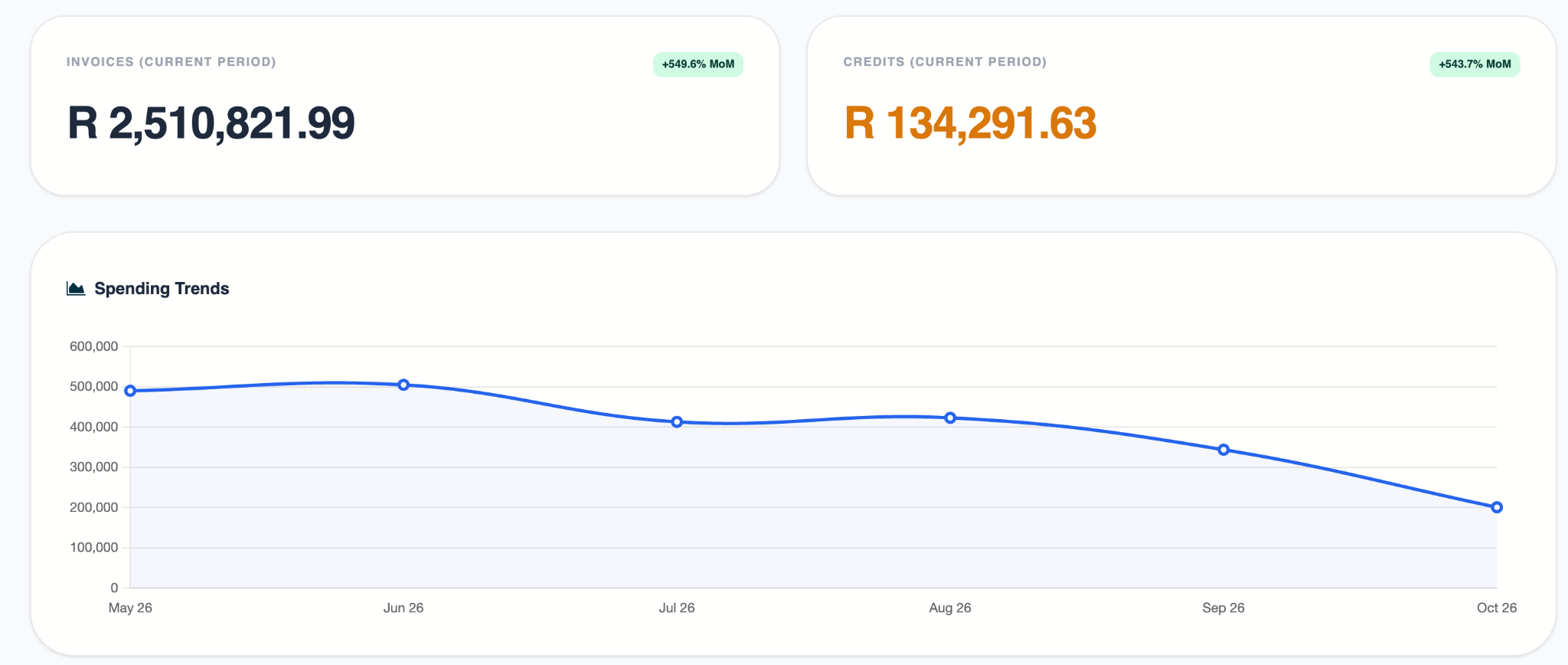
Sales History gives you an overview of sales activity across orders from all ordering platforms, not only orders placed through the webshop. It includes current-period invoice and credit totals together with a spending-trend view.
Filtering Sales History
Use the From and To date fields to view sales history for a specific period. You can also search by an invoice number or reference, then select Filter. Use the reset button to clear the filters.

Invoices and Credit Notes
The transaction list shows the date, document number, order number, reference, document type and amount. Select the PDF icon alongside a transaction to download a copy of that specific invoice or credit note.

Request Statement
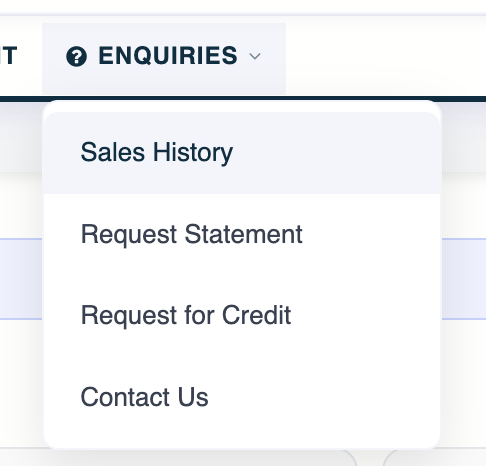
The Enquiries menu includes Sales History, Request Statement, Request for Credit and Contact Us.
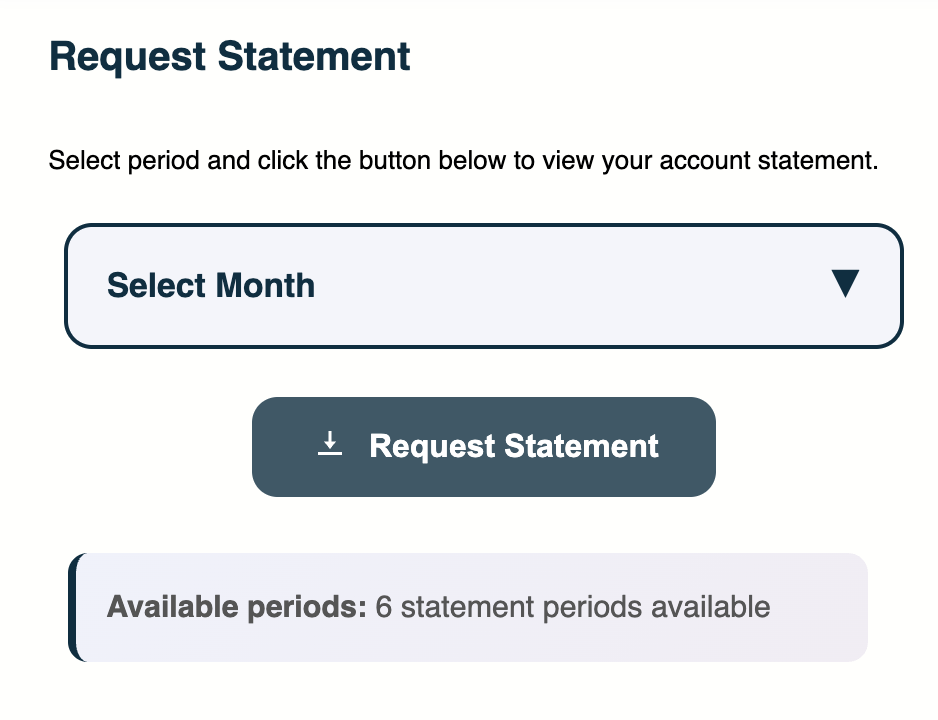
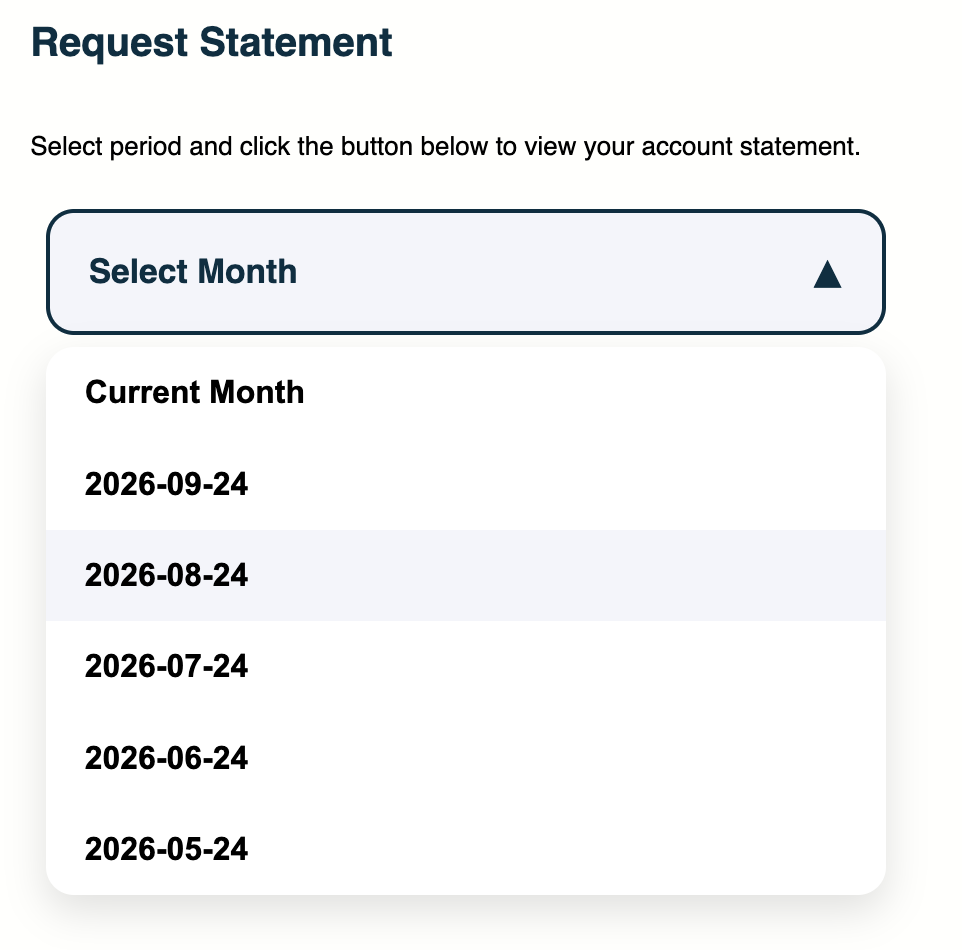
Select Request Statement to download your current statement or choose a previous statement period from the available list.
Select the required month or period and then select Request Statement to generate the statement. The page also shows how many statement periods are currently available.
Request for Credit
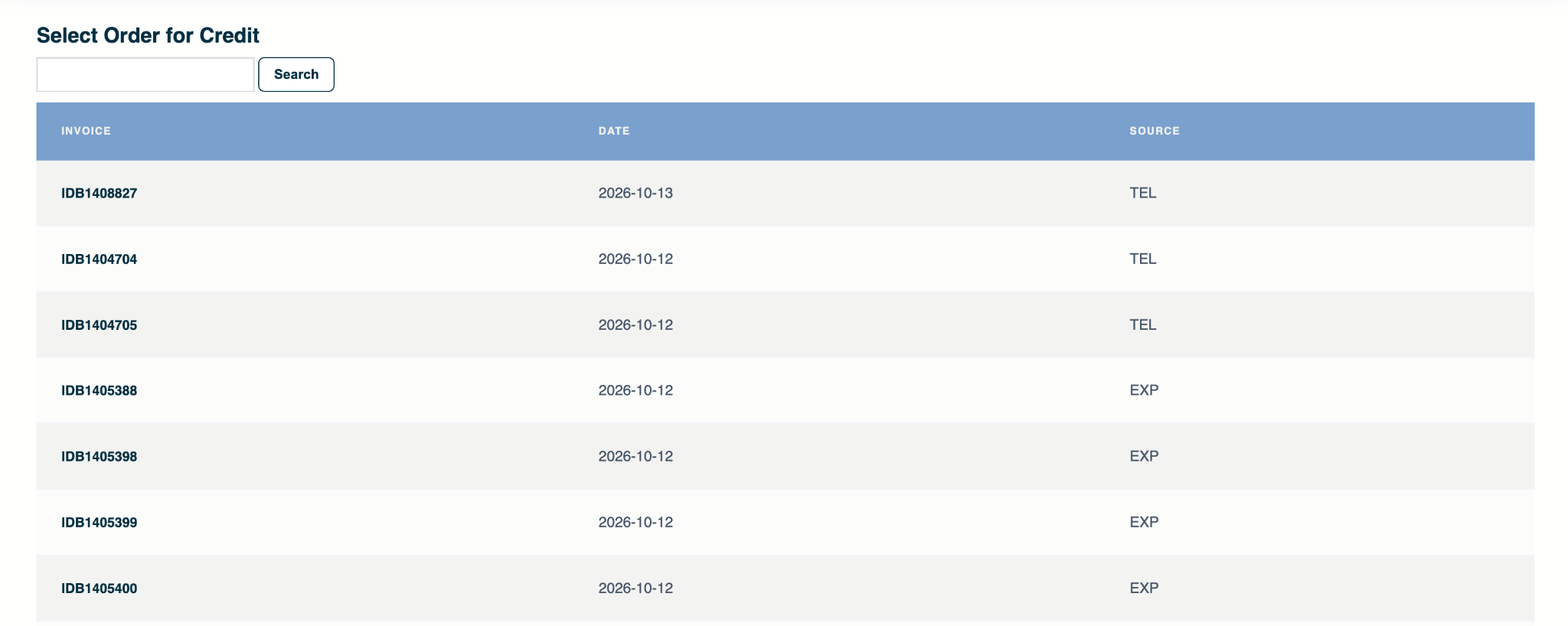
Use Enquiries → Request for Credit to submit a return or credit request against a previous invoice.
1. Find the invoice
Search for a specific invoice number or select the required invoice from the available list.
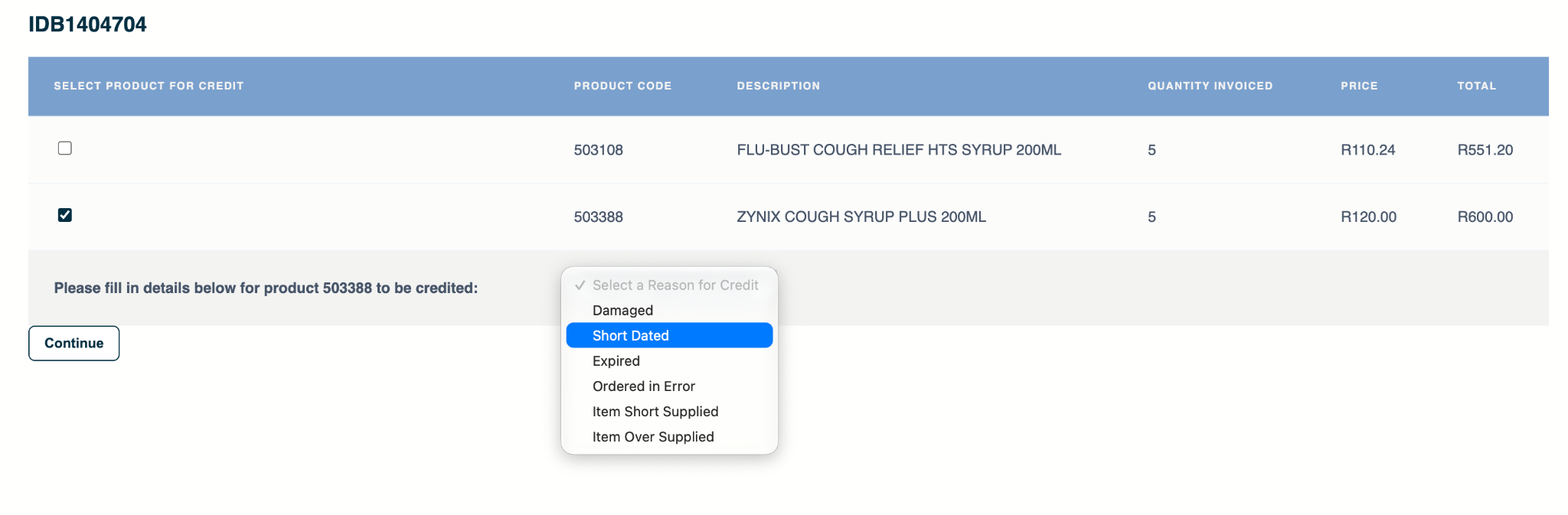
2. Select the item and reason
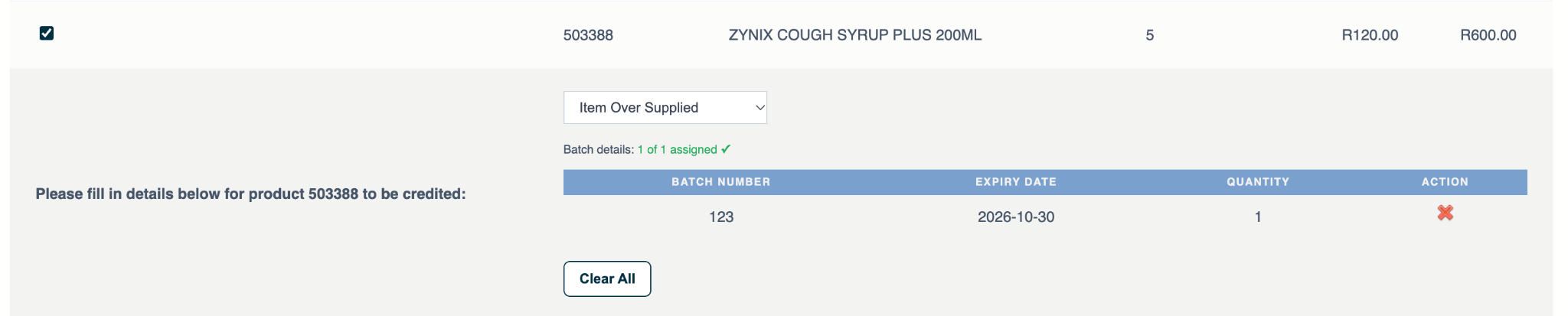
Open the invoice and tick the product or products you want to return. For each selected item, choose the appropriate reason for the credit request. Available reasons include Damaged, Short Dated, Expired, Ordered in Error, Item Short Supplied and Item Over Supplied.
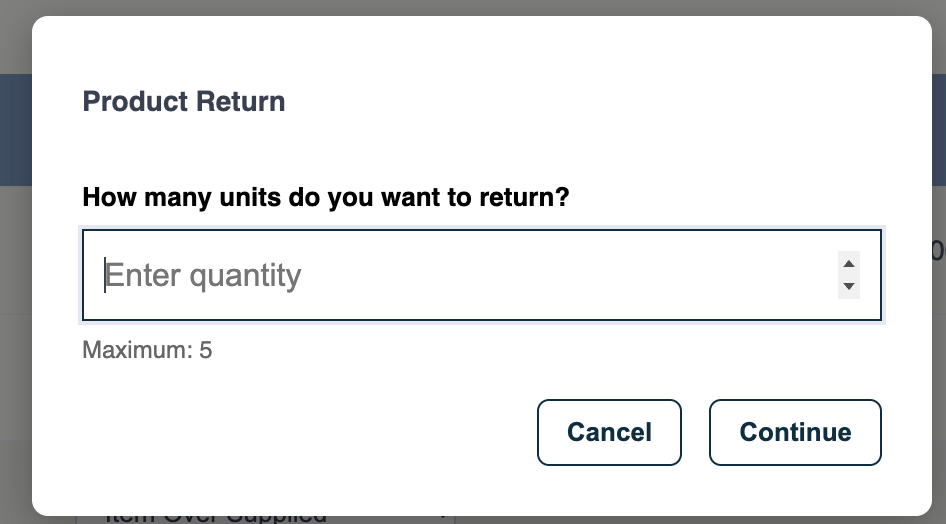
3. Enter the return quantity
Enter the number of units you want to return. The system shows the maximum quantity that may be selected based on the quantity invoiced.
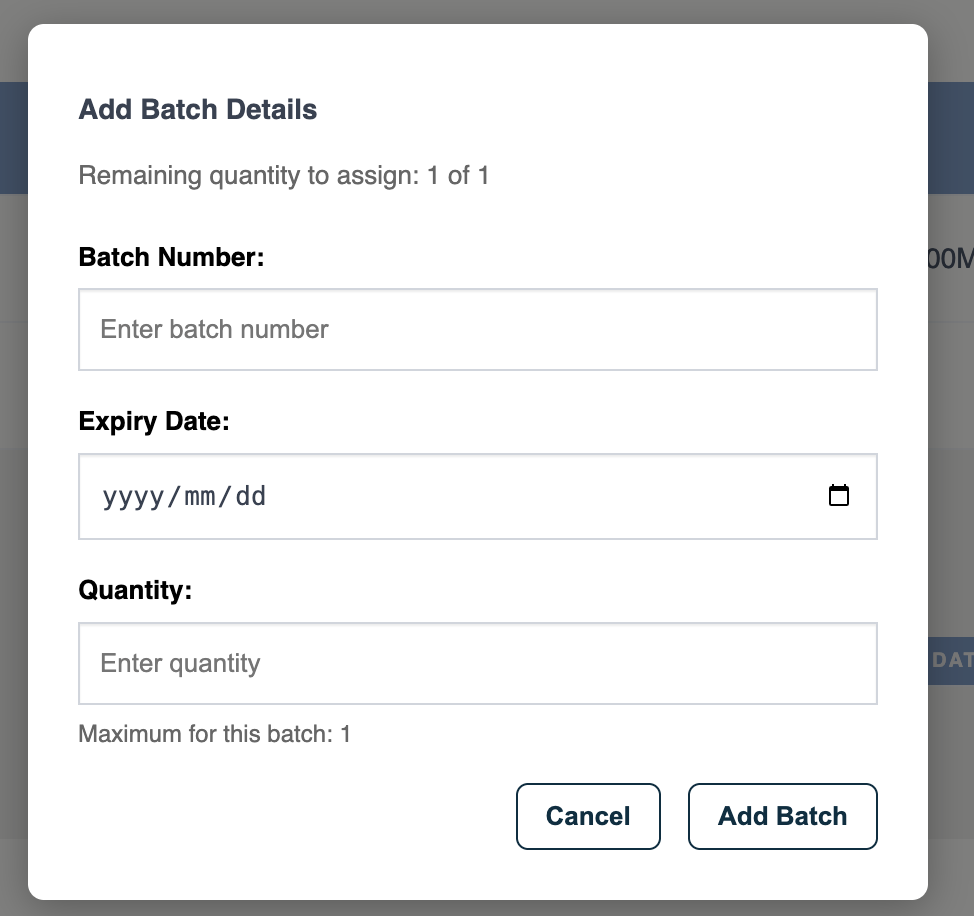
4. Enter batch details
Enter the Batch Number, Expiry Date and Quantity for the returned stock. If the return quantity comes from more than one batch, add the relevant batches until the full return quantity has been assigned.
Help & Support
If you need assistance, you can contact the Alpha Pharm team from the webshop or by email.
Contact Us
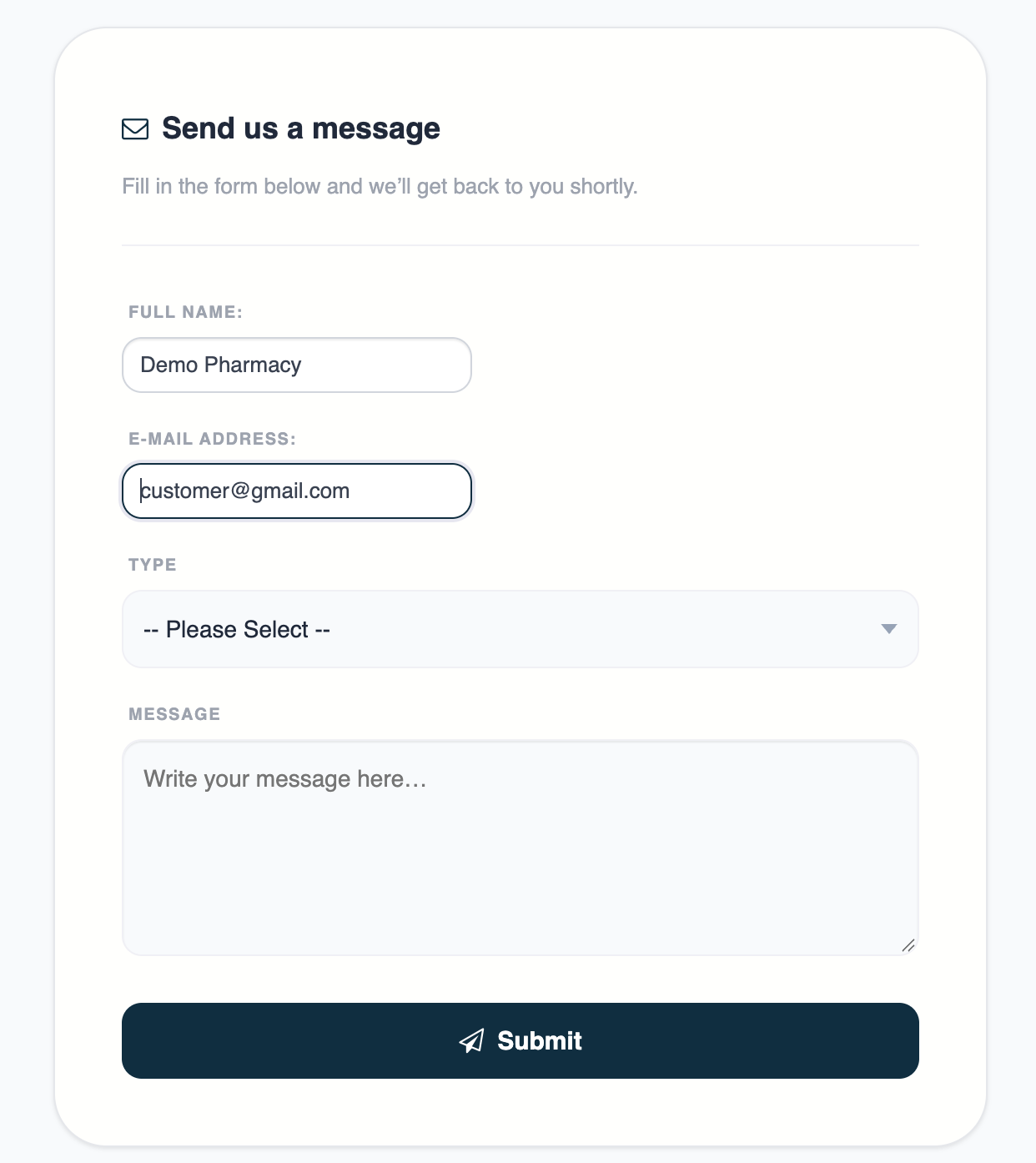
Use the Contact Us form to submit a compliment, complaint or general message. Confirm your name and email address, choose the relevant message type, enter your message and select Submit.
Email support
You can also email speak-to-us@alphapharm.co.za.